
Bring your tabs together.
Read a compatible product page when you choose, then review its details before adding it. Manual entry is always available. Compare up to eight offers in one workspace.
Unit Price Checker · Free Chrome extension
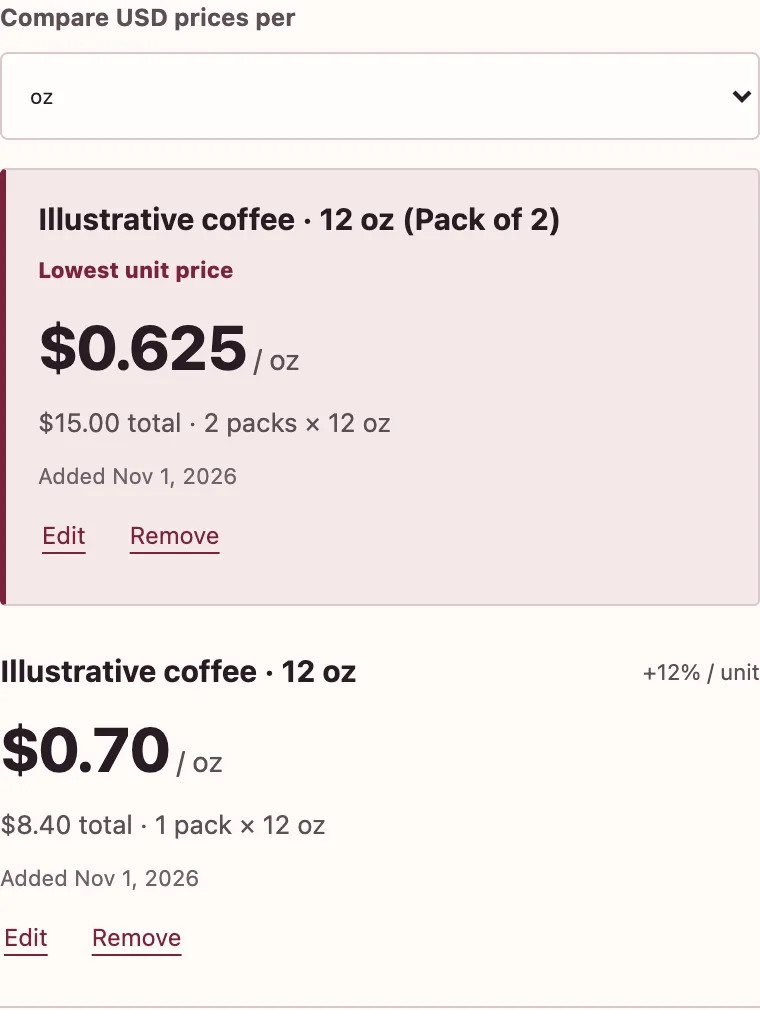
Bring offers from different tabs into your side panel. Review sizes and multipacks, then compare their prices in the same unit.
For Chrome on desktop · Free to install
Opens the Chrome Web Store. Review and install there.
The extension has no account, ads or analytics.
Your comparisons stay in your local Chrome profile.
Try a comparison
Start with these illustrative prices, or enter two offers of your own. All amounts are in USD.
Package A costs 11.1% more per oz.
Package A
$0.50 / oz
12 oz total
11.1% above Package B
Package B
$0.45 / oz
20 oz total
Lower unit price
Illustrative comparison · price ÷ (amount per pack × packs). Your entries stay on this page and reset when you reload.
This example shows $6 for 12 oz and $9 for 20 oz. Enable JavaScript to edit the quantities and prices.
Using the extension
Read a compatible product page when you choose, then review its details before adding it. Manual entry is always available. Compare up to eight offers in one workspace.
Your workspace saves as you edit. Keep up to 20 named comparisons, undo a workspace replacement, or export the details as a CSV file.
Choose a covered category and U.S. city to explore dated CostInflation price history. Follow the evidence back to its chart, quantity and observation dates.
Explore price historiesGetting started
Open the Chrome Web Store on your desktop, review the extension and choose Add to Chrome. Chrome 116 or newer is required.
Choose Unit Price Checker from Chrome’s extensions menu. Review the first-use disclosure, then open a product page and choose Read this page, or add an offer manually.
Check the whole-offer price, amount per pack and number of packs. Add another offer, choose a common unit and compare. Alt+Shift+U is the default shortcut.
Good to know
The extension reads a page only when you ask it to. It prepares compatible product details for you to review and edit before adding them. Product details and cleaned shopping-page links stay in your local Chrome profile. You can also enter offers manually.
If you request category price history, the extension asks CostInflation for public data about that category. The request includes the category identifier and ordinary connection information, such as your IP address and browser details. It does not include your product details, entered prices or shopping-page links. Read the extension privacy notice.
Compare weight, volume or matching counts in a common unit. Weight and volume remain separate, as do different currencies and distinct count types such as rolls and sheets. Currency selection labels your entries; it does not convert exchange rates. Enter the total price that applies to the whole offer, including any adjustments you want to compare.
Category history provides a dated reference for a standard quantity in the city you select. Your entered offers remain a separate comparison. Each history shows its observation dates and links to the CostInflation evidence page.
The extension runs in Chrome on desktop. You can try the comparison on this page on your phone and copy the Store link to open on your desktop.
Use Clear local data in the extension to remove its workspace, saved comparisons, preferences and temporary data. CSV files you exported remain your files. For questions or suggestions, contact CostInflation.
CostInflation for Chrome
Compare package prices, save your work and explore category price history.
For Chrome on desktop · Free to install
Opens the Chrome Web Store. Review and install there.
Add costinflation.com as a preferred source for price-index updates.